
The Photo List page shows a list of all photos on the site. This list is searchable by file name, file folder names, or image ID.
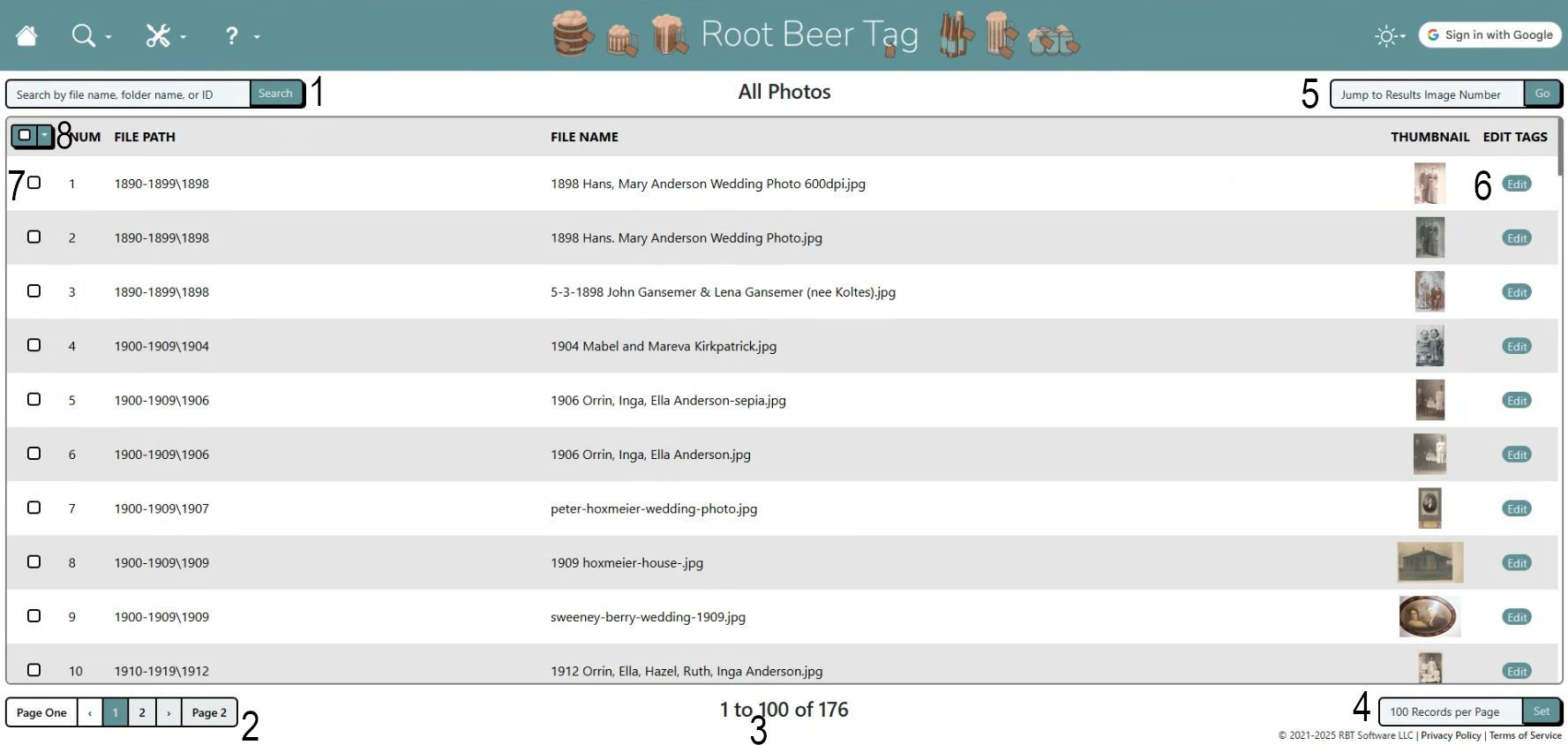
Lots of moving parts on this page. Here are some highlights.
- Users can type search patterns into the top left search bar and either hit enter or click on the Search button. If the search pattern is found in any file names, file folders, or image IDs, the page will update with the search results based
- Users can navigate through pages of results by using the navigation links at the bottom left.
- A count of images in the current result set can be found at the bottom center.
- At the bottom right, users can select the number of images to show on a page: 25, 50, 100, 500, or 1,000. Click on the “Set” button to execute the change.
- At the top right, users can bring up an edit window for a specific image by typing its counted number within the result set. In the example above, typing 167 in the top right bar and clicking Go, comes up a tag editor window for the 167th image in that result set.
- Clicking on an “Edit” button on the right will bring up a Tag Editor page for that image.
- At the left of the results are check boxes users can select to link tags to multiple images simultaneously. Clicking the checkbox in the column header row (8 on the image above) will select all of the images on the current page. Clicking it again will unselect all images on that page. While at least one image is checked, clicking the down arrow next to that top check box will give a few options. One of those options is to link a tag to all checked images. Clicking that option launches a small pop-up that allows users to select a tag to link to all checked images.
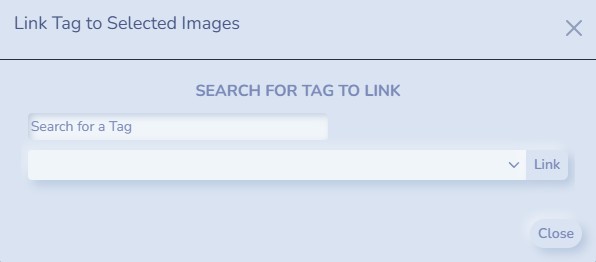
- Once tags are linked, another option is presented to undo the most recent tag-linking via this method.
If videos are more your speed, here’s a video that also explains the features of this page and how to use them.
This page last updated on 19 February 2026 by Bill Anderson