
The Tag Select page is the page where anyone visiting the site (if public access is allowed) can pick tags to search on throughout the site’s images collection. Searching for tags will return a list of all images that are linked to those tags.
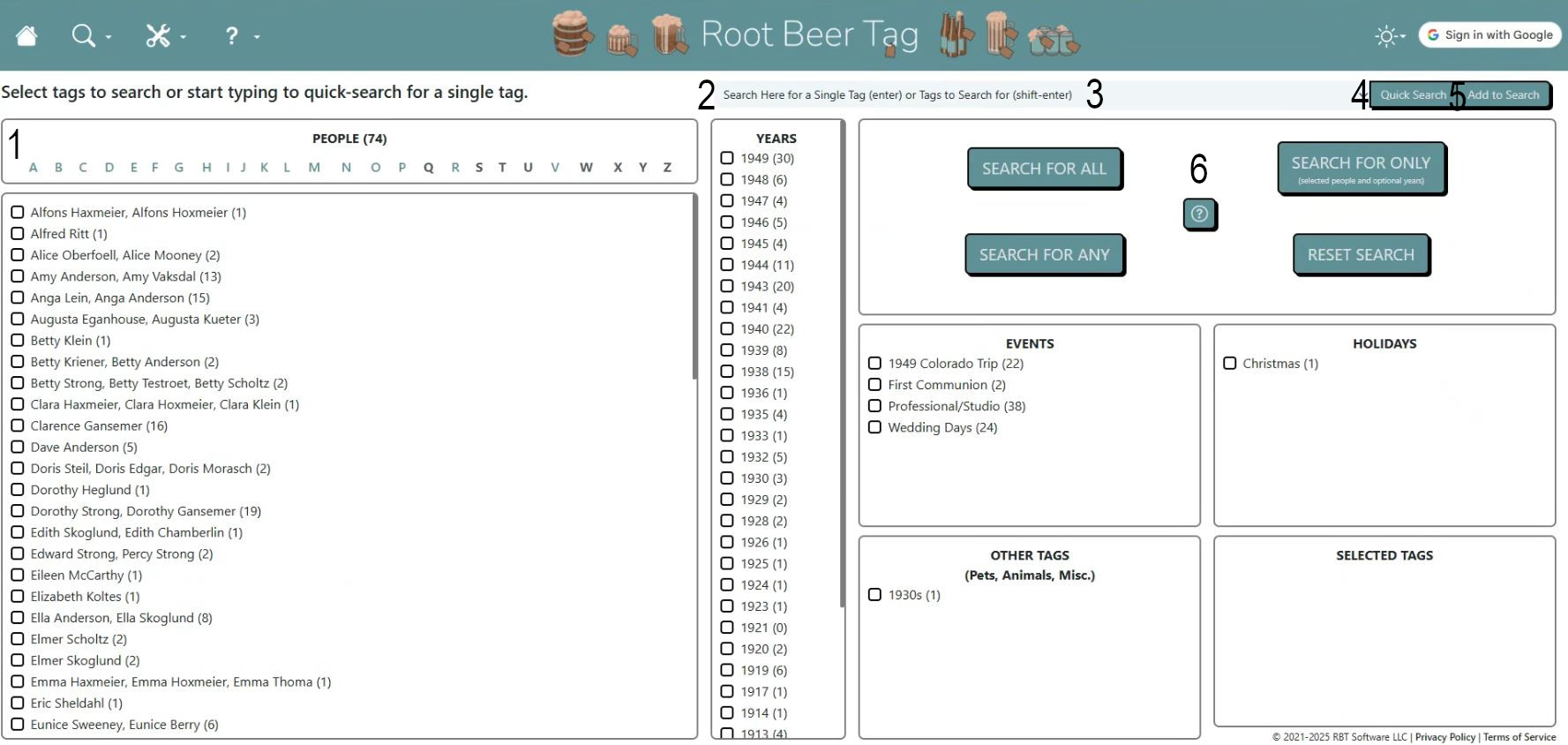
To select tags to search for, users can scroll through the different categories of tags and click the check box next to desired tags. Or, users can search for tags to find using the search bar at the top of the page.
Here are a few highlights.
- Users can click on the A-Z letters across the top of the left side of the page to quickly jump to that part of the people tag list.
- When the page loads, the cursor is dropped into the search bar. Searching for tags here lets users either quick-search for a single tag <enter> or add tags to the Selected Tags <shift-enter> for more complex searches.
- Tags that match text typed in the search bar will appear in this drop down.
- Quick search for a tag in the drop down bar
- Add a tag in the drop down bar to the Selected Tags.
- Once users have selected one or more tags, they can click on one of the three search buttons.
- Search for All – Returns all images that have all of the selected tags linked to them. Images returned may contain other tagged people.
- Search for Any – Returns all images that have any of the selected tags linked to them. Again, images returned may contain other tagged people.
- Search for Only – Returns all images that have only the selected tags linked to them. This option only works with people and year tag types.
- Reset Search – Clear all tags from the Selected Tags. Note: This option does not always uncheck all checkboxes, but all tags are removed from Selected Tags.
- For more detailed explanations of different search results, click on the question mark in the middle of the search buttons for more information, including samples from our demo site.
If videos are more your speed, here’s a video that also explains the features of this page and how to use them.
This page last updated on 19 February 2026 by Bill Anderson