
Why would I need to remove IDs from images’ metadata?
We got into that state by copying some images of my mother-in-law’s quilts that were scattered around our collection into a centralized location. When I then uploaded the changes in the folders and ran the Add New Images or Update Image Info utility, the images’ entries in the database were updated to their new location as expected. However, the 66 original images were still out there across our collection, but no longer referenced in the database. They were basically orphaned.
I wrote a new utility to identify these images (Check for Duplicate Image IDs) and added it to the Site Utilities page. Running that utility produced this output:
If this script returns any images, work with the site owner to remove duplicate images at the source and re-synchronize to Root Beer Tag.
If called from a browser, please do not close this tab until the script completes (a completed message will print).

Unique ID 030656FF11927640FF96AA4CFD80347E is assigned to more than one image on the filesystem.
photos/2000-2009/2001/10-27-01 trunk or treat/1.jpg
photos/quilts/2001 10-27 Angel quilt.jpg

###################  REST OF OUTPUT TRUNCATED  ###################

Unique ID 2024121713122954BDFC15E02B60770B is assigned to more than one image on the filesystem.
photos/2024/11-30-24 Shopping and New Quilt/04 Three Wise Men Quilt.jpg
photos/quilts/2024 11-30 Three Wise Men Quilt.jpg

66 duplicates were found.

Again, work with the site owner to remove duplicate images at the source and re-synchronise to Root Beer Tag.

Script has completed; this tab can be closed.
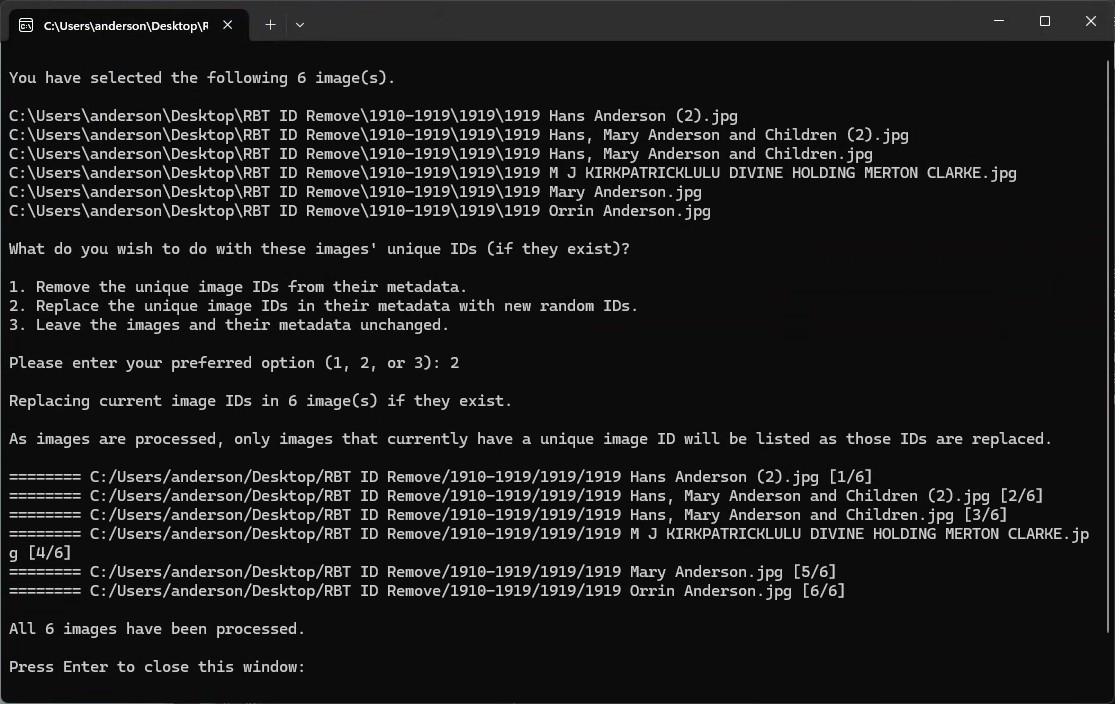
From here, we had two options. Remove the duplicate images or embed new image IDs in the duplicate images that were not in the database. We decided to keep the duplicate images. Since there was no process to remove image IDs from images’ metadata, I created one. Here’s how to do it.
OK. This sounds tough.
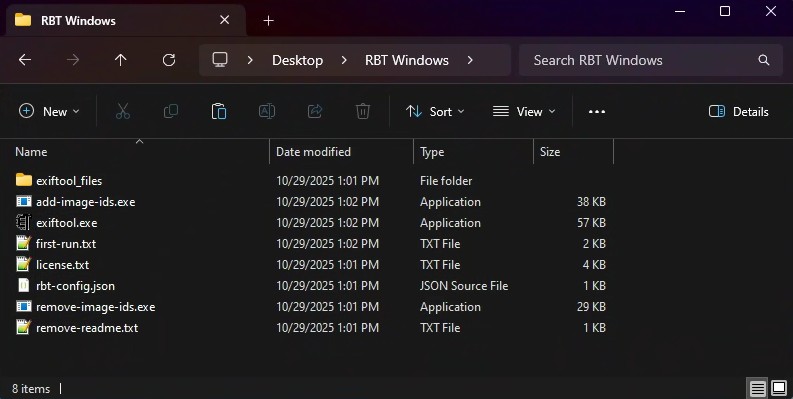
Similar to the add-image-ids utilities, remove-image-ids is not recognized by Apple or Microsoft. When first running it, you will need to bypass Windows or macOS security, similarly to what you did with add-image-ids. Review the Root Beer Tag client-side software usage guide for our particular OS if a refresher is needed.
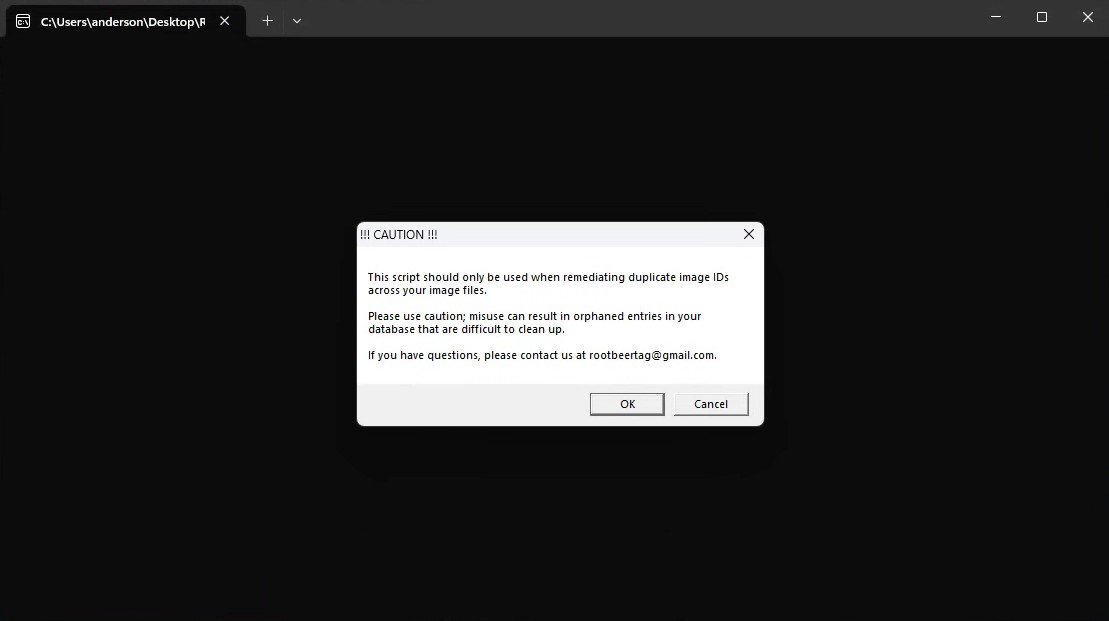
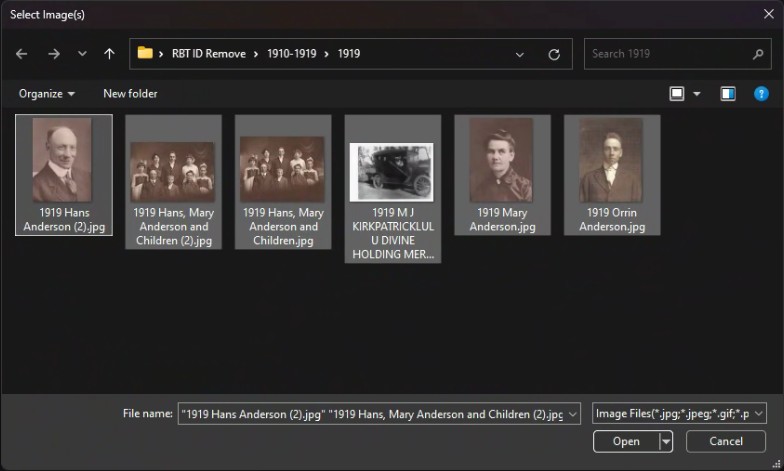
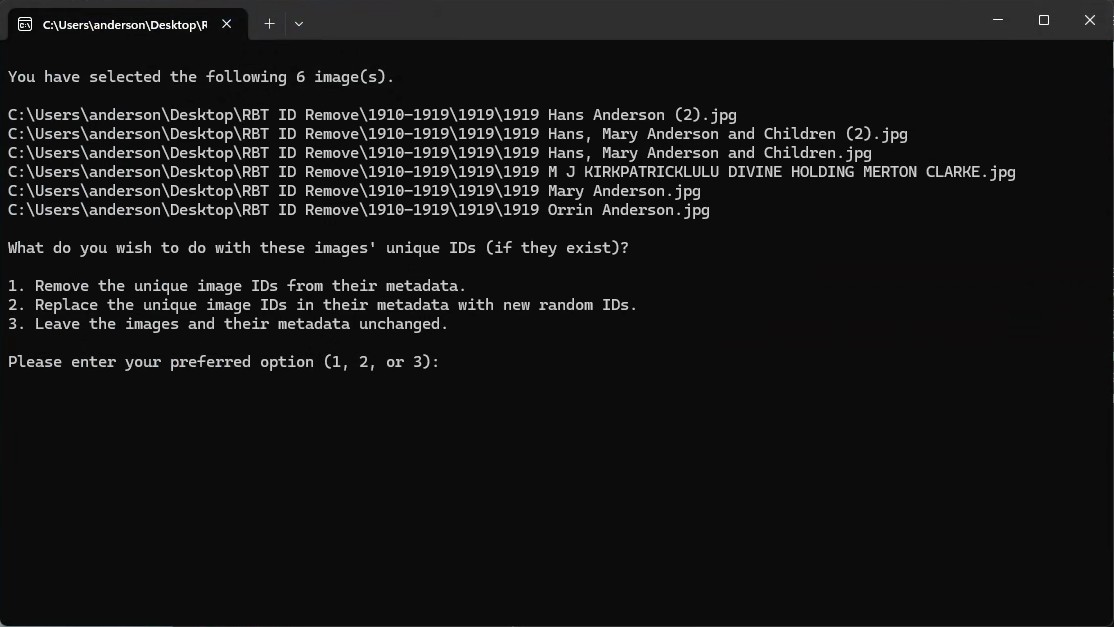
- Remove the unique image IDs from the images’ metadata.
- Replace the unique image IDs in the images’ metadata with a new image ID.
- Leave the images and their metadata unchanged (essentially stop and do nothing).
This page last updated on 13 November 2025 by Bill Anderson