
Wait a minute. If Root Beer Tag is web-based, why do I need to install software on my computer?
Very fair question. Integral to Root Beer Tag is a unique Image ID that is embedded in the metadata of your images (metadata already embedded in the image files may include dates, camera model and settings, etc…). The client-side software generates, assigns, and validates these IDs so your images can be cataloged for tagging and searching. It is important that the client side software be run BEFORE uploading your photos to us, both initially and whenever you want to upload more images.
OK. That makes sense. Where do I get the client software?
In addition to the download links on Root Beer Tag’s main pages, you can also download the client software via this direct link. Once you have the .zip file downloaded, open it up and you should find four files. Extract these four files into a new folder. From here, you can follow the steps in this YouTube video. If videos aren’t your learning style, you can continue below the video for step-by-step instructions with screenshots.
Once you’ve downloaded the client software and extracted the files in to a new folder you’re ready to begin.
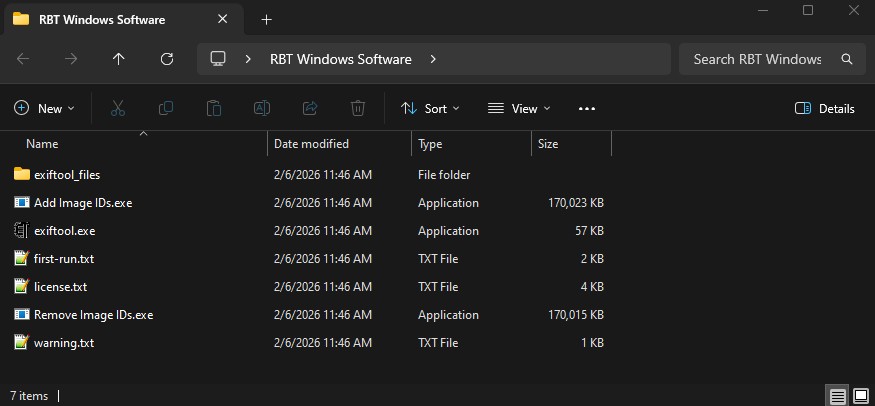
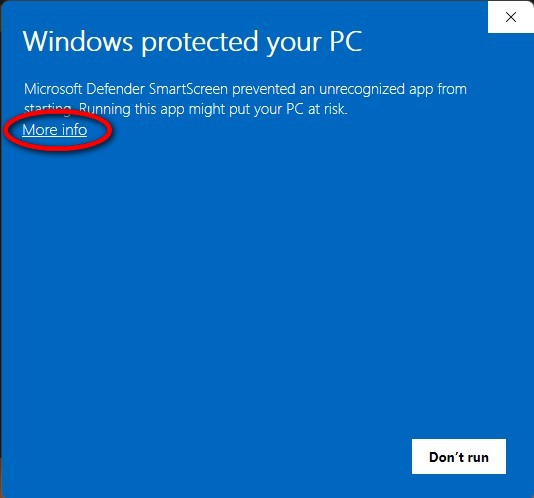
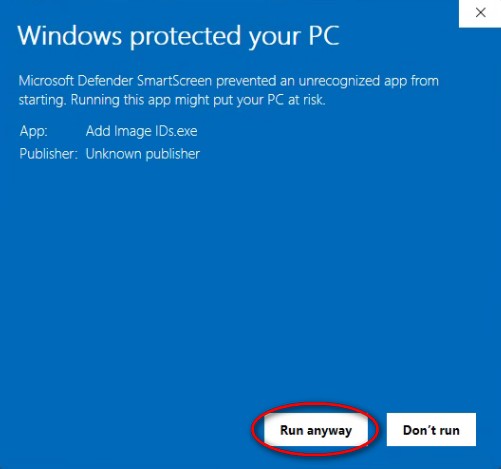
Nothing else needs to be installed or configured. Double click on Add Image IDs.exe, and you may be presented with a security window because Windows doesn’t recognize the author of the application. You should only need to do this once.
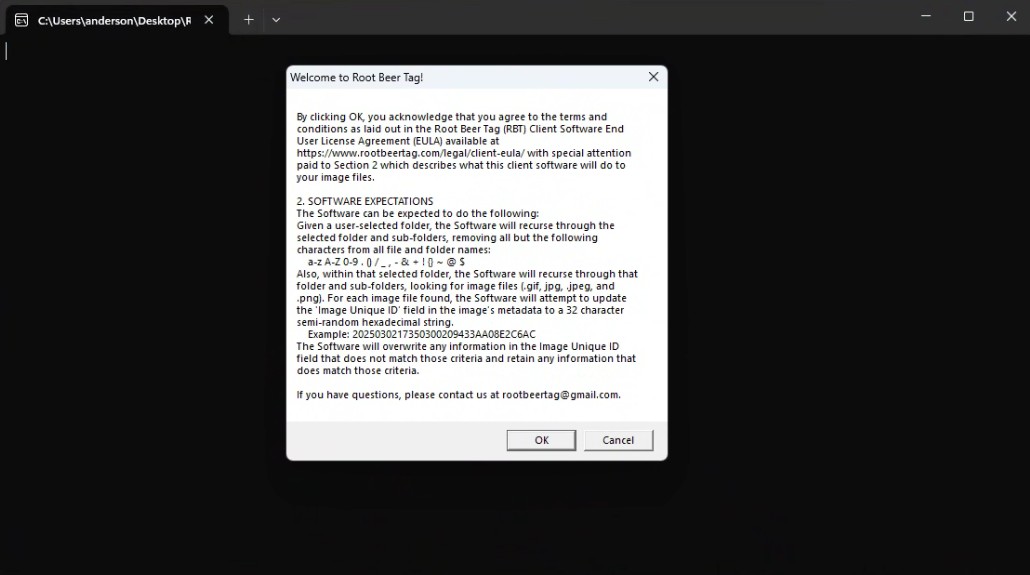
Anytime you run add-image-ids, a command window will open. When run for the first time, add-image-ids.exe will pop this dialog describing what it does and making sure you agree with the EULA. If not, you may click cancel and your images will remain unmodified.
Once you click OK, you will get a dialog box to select your top level image older (initially defaulting to your Windows Pictures folder). In addition to a command window, this dialog will open every time add-image-ids is run and default to the last folder selected.
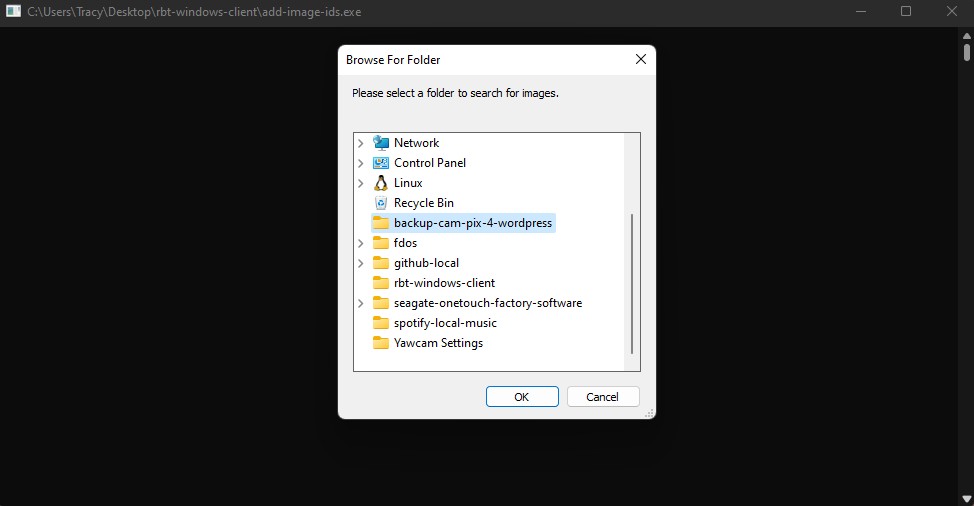
Once you select a folder and click OK, output will begin scrolling on the command window starting with a count of the images to be processed (a count of all images found in the selected folder and its sub-folders). As processing continues, only images that are modified will be listed as their unique image ID is embedded.
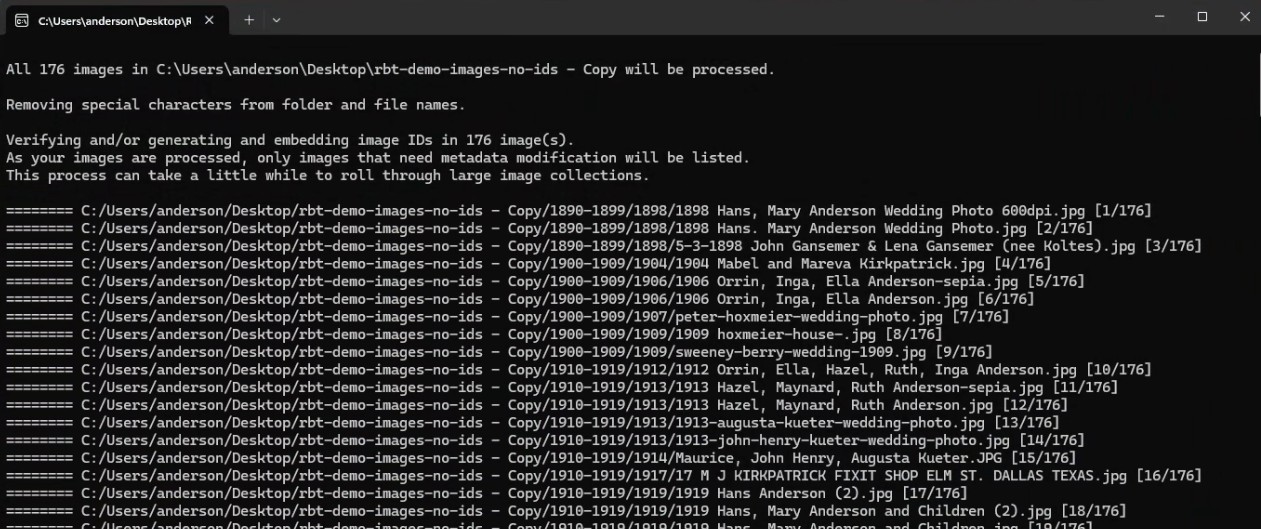
Once processing is complete, any errors will appear at the bottom of the window.
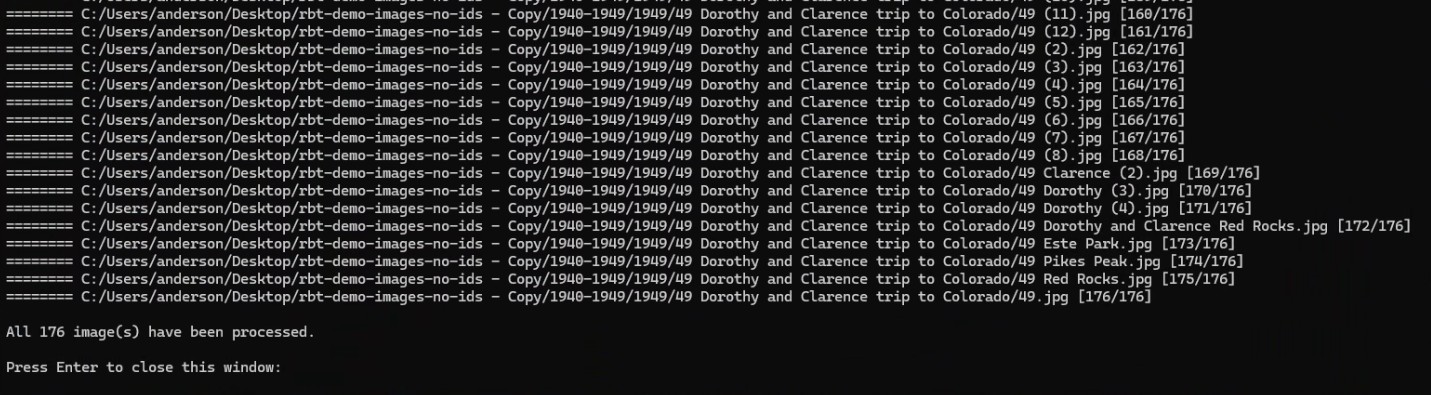
That’s it! Now, your images are ready to be uploaded to Root Beer Tag. NOTE: this client software needs to be run whenever you designate new images to be uploaded to Root Beer Tag. If needed, detailed uploading instructions can be found on our Using Free File Sync page.
This page last updated on 6 February 2026 by Bill Anderson