
Linking and unlinking tags from images is a breeze thanks to this page (one of the first pages built for Root Beer Tag).

This page gets its images from the list of images on the Photo List & Search page from where this page was called.
- A couple of small navigational things first. At the far sides of the page are buttons to navigate through the result set from the previous page.
- At the top right is a search bar that will let the user jump to an image in the result set (i.e. type 103 and click Go to jump to the 103rd image in the result set).
- The information at the top of the page tells users where they are within the result set.
- Dominating the left side of the page is a large view of the image.
- At the top of the right side is a list of currently linked tags. This table also gives users the option to unlink individual tags.
- Search for Tag(s) to Link – Immediately below the current tags table is a search bar to find tags to link to the image with a drop-down menu below. Users can search in the bar and when the desired tag appears at the top of the drop down, just hit Enter to link the tag. If the drop-down is expanded and a tag is selected from there, click on the Link button to link the tag.
- Select Tag(s) to Link – Next are two specialized menus for tag finding. The menus will list tags with tag types of Events and Holidays. If desired, select a tag from one of these and click the Link button next to that menu.
- If a user desires, they can set up shortcut buttons to link frequently used tags with a single click. Those buttons (if any are configured) appear here. More information on how to set up shortcut buttons in a little bit.
- The last sub-section contains a few buttons that trigger some very useful functions.
- Tag Maintenance – simply opens up the Tag Maintenance page for the site in a new browser tab.
- Unlink All Tags – as the name implies, this button will unlink all tags from the image.
- Users are warned of the consequences and must type UNLINK to execute the unlinking.
- Edit Shortcut Buttons – opens up this pop-up that allows users to edit the tag shortcut buttons.
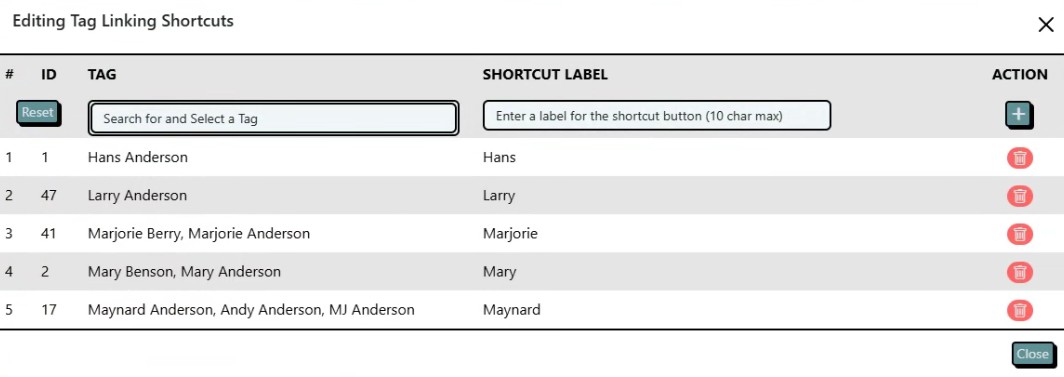
-
- Copy Tags from This Image – This button copies the tags currently linked to this image for pasting to another image in this result set.
- Paste Tags to This Image – This button pastes tags copied earlier in this result set and links them to this image.
- Copy from Last Photo – Using this button links the tags linked to the previously viewed image to this image (as long as either of the directional buttons on the far left and right of the page were used to advance to this image).
If videos are more your speed, here’s a video that also explains the features of this page and how to use them.
This page last updated on 19 February 2026 by Bill Anderson